
Blog
Microsoft 365 Copilot Cowork needs Skills and this is how you do it!

I have been working with various clients around the adoption and scaling of Microsoft 365 Copilot Cowork, Cowork from herein, and questions that come up time and time again is how to tailor Cowork more towards the organisation and themselves in the way they like to work, their patterns and their execution of items. I also get many questions around Cost Management, Accountability, Governance and Data access but let’s save that for another day.
Cowork moves Microsoft 365 Copilot from assisting with work to executing work, planning and completing multi-step tasks across Microsoft 365 on the user’s behalf. This is truly powerful
However, unless you provide packages of “Skills” which, succinctly put, is a reusable, documented way of doing a piece of work that Cowork picks up automatically whenever a task calls for it, then Cowork very much is a generalist, a competent one but a generalist all the same. Cowork can draft, analyse, build files and take actions but it doesn’t truly know the way you and your organisation carries out that particular piece of work, skills fix that!
It is important to note: that Skills are a key tailoring aspect of AI harnesses and a skill you create for one AI Tool will likely be transferrable to another. Especially as it seems (trying to dig out if its true, rather than a postulation by myself) that Microsoft follows the open Agent Skills standard.
So what is a skill exactly?
A skill is a distinct and succinct set of instructions, plus any reference material that tells Cowork how to perform and carry out a specific workload – the format, the sources to use, the checks to apply and importantly, what not to do!
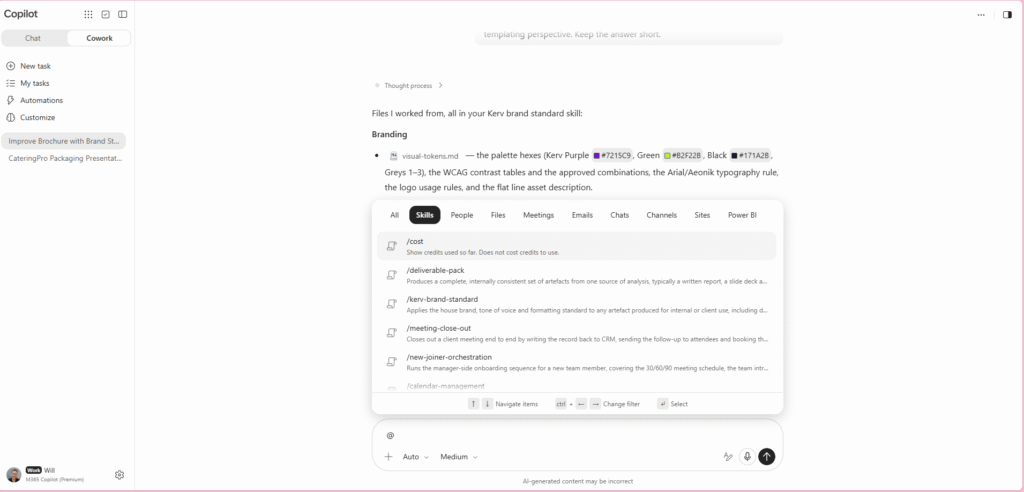
You do not need to invoke a skill yourself, although you can by typing an @ and selecting skills as shown in the image below, but Cowork will review skills on execution of a prompt to check for any alignment to the task you have requested and tehn automatically applies it. This results in near consistent approach across everyone who has the skill.
An example:
I put together a quick example to really show how Skills can have quick, critical impact. Take a simple PDF Brochure output before adding a Branding Standard skill vs after:
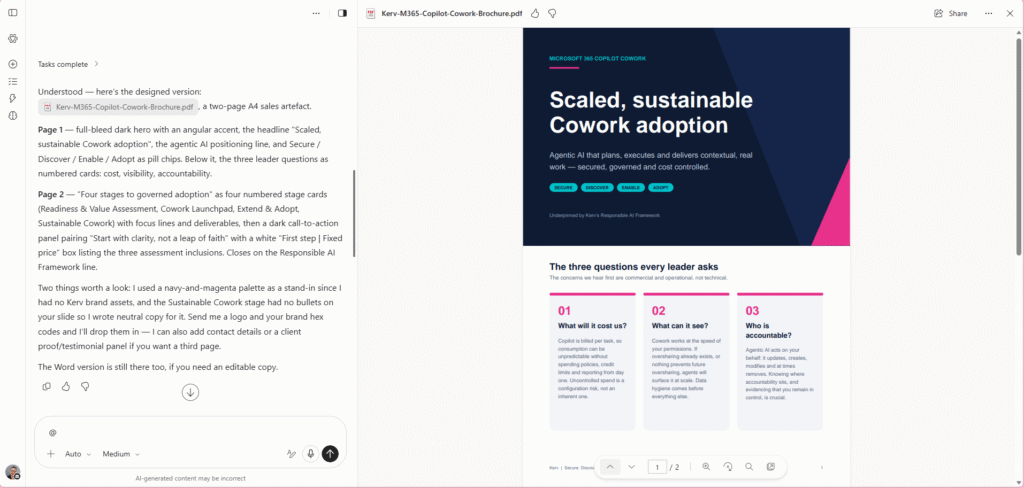
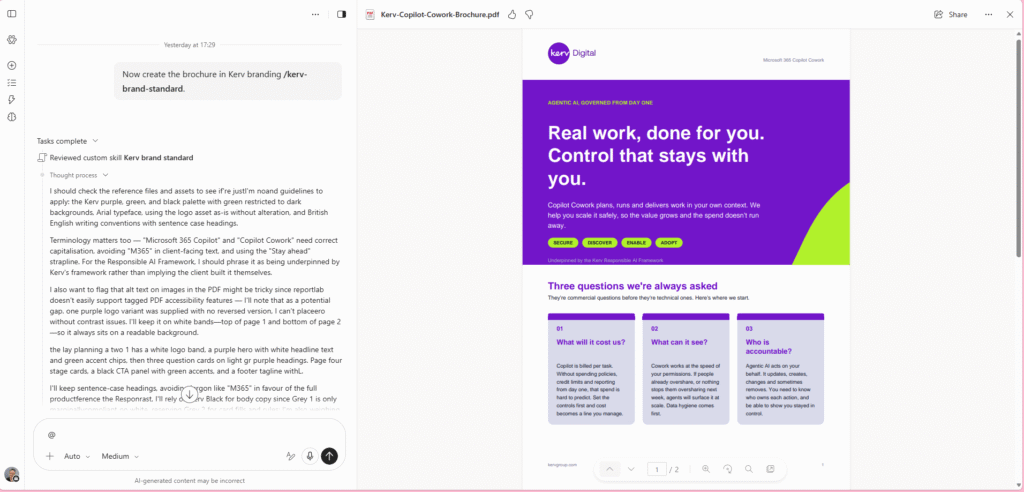
As you can see from the example above, Cowork on the left has created an aesthetically pleasing ‘brochure’ which has been beautifully executed – however, my Marketing team would not be best pleased with all the effort they’ve put into designing a brand with the right tone, colours, logos etc. So after uploading a Branding Standard skill that aligns more closely to what the marketing team would expect and re-running it I have what is produced on the right. The outcome is a much stronger alignment to my companies expectations – now we could take it further and provide templates in a ‘assets’ folder of brochures so it can reason over how we like to curate brochures too – but I only had so much time for this article 😉.
Creation and structure of a skill
Now a statement some may make here is “Will, you can just go to Cowork > Customise > Skills and Edit and Draft from there – which you can then have a guided handholding experience of building a skill” which is of course an option but I am a huge fan of understanding how it all hangs together in this democratised world.

Custom Cowork skills are created by placing them in the following folder path in your OneDrive account:
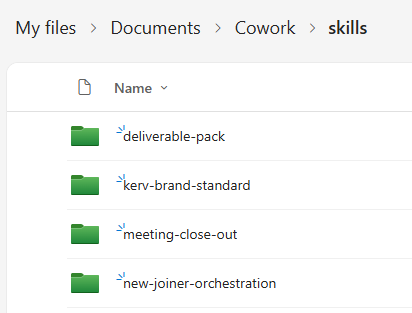
OneDrive /Documents/Cowork/skills/ (if the folder does not exist create it, all lowercase).
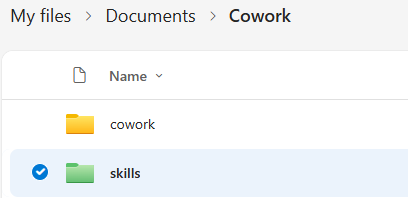
Cowork then will discover your custom skills automatically as the start of each session and align to the appropriate ones based on context – the folder name becomes that contextual identifier. In my ‘skills’ folder I have the following skills:
You are allowed up to 50 skills
Inside each of those folders the layout can change depending on the companion files required – support assets and references that the SKILL.md refers to as shown below:



Structure of MD file
So, two key items when it comes to a SKILL.md file. First and foremost, a short YAML frontmatter block detailing, as a minimum, a ‘name’ and ‘description’ – this must sit between two lines of three dashes “—“. Then underneath that you can have the Markdown instructions. The description is key as this is what Cowork will match against rather than read the whole document be sure to write in third person, keep succinct to a few sentences ensure to state when this skill should fire:
---
name: brand-standards
description: Use when the user asks for any customer-facing document, brochure, one-pager or presentation. Applies Kerv brand colours, typography, logo placement and tone of voice, and rejects off-brand output.
---

## Purpose
Produce customer-facing collateral that a member of the marketing team would sign off without amendment.

## Sources
- Colour palette and typography: see palette.md
- Tone of voice: see tone-of-voice.md
- Layout reference: assets/brochure-template.docx

## Procedure
1. Identify the document type and select the matching layout reference.
2. Apply the palette and typography before drafting any content.
3. Draft in the tone described in tone-of-voice.md.
4. Run the checks below before presenting output.

## Checks
- Logo appears once, top-left, with clear space as specified.
- No colours outside the palette.
- No exclamation marks in body copy.

## Do not
- Invent product names, statistics or client references.
- Substitute stock imagery for the approved asset library.
When it comes to the body of the SKILL.md file under the frontmatter, there is no prescribed approach here but I often use the approach above (purpose, sources, procedure, checks and do not) as its how I’d brief someone on a particular work process.
Why skills matter?
This is an often overlooked part of adopting skills but adopting skills goes beyond the obvious benefit of more consistency around execution of task in accordance with expectations. Cowork is metered and a well-designed skill getting the task right for you the first time rather than iteratively will save those precious tokens!
Some tips & tricks
A few rules around this that can be easily missed:
- As mentioned above the folders name is the Skills identity keep it lowercase, hyphenated (kebab case) and identical to the ‘name’ field in the “frontmatter”. Although Cowork seem to be quite tolerant with this the wider Open Agent Skills standard is not and its a good habit to build these appropriately from the start for easy transfer.
- Reference files are linked from the main SKILL.MD file by their relative path i.e. nested_folder_name/filename.md/docx etc. do not paste URLs to SharePoint etc.
- The main SKILL.MD file should be short and direct, quick enough to read in one sitting rather than a huge volume of text – anything lengthier belongs in a companion file
- Document limits are currently at 1MB per SKILL.md, with up to twenty companion files and a total of 10MB per Skill.